
Introduction
If you’ve ever worked on a large, growing project, you know the drill. The codebase expands, and scattered throughout its files, little notes to your future self begin to bloom:
// TODO: Refactor this module
// FIXME: Edge case causes crash here
// BUG: Potential memory leak
Before you know it, these critical reminders are lost in a jungle of logic and functions. You know they’re in there somewhere, but finding them all is a chore you never have time for.
What if your code editor could automatically find, index, and list every single one of those action items for you?
Good news: it can. Let me show you how the Todo Tree extension for VS Code turns your scattered comments into a manageable, interactive taskboard.
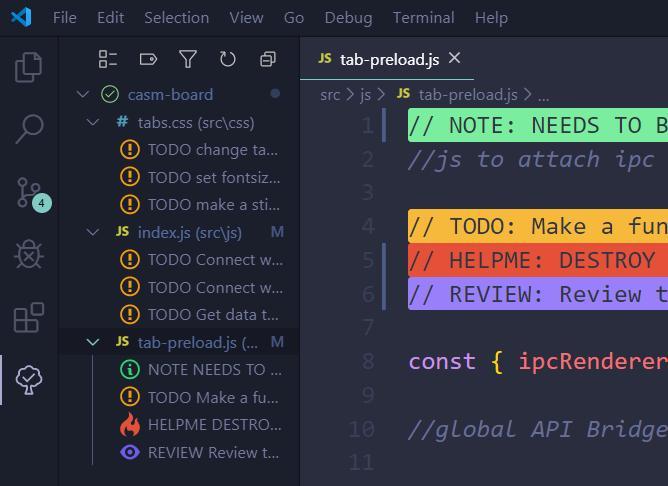
The Problem: Good Intentions, Lost in the Shuffle
We all start with the best intentions. You’re in the flow, you spot an improvement or a lurking issue, and you drop a quick comment to handle it later. “I’ll come back to it,” you think.
But as the project scales, those “laters” pile up. They live in different directories, different languages, different contexts. Manually searching for TODO or FIXME becomes impractical. Critical fixes get overlooked, and technical debt silently accumulates.
This is the universal challenge Todo Tree is built to solve.
The Solution: Introducing Todo Tree
Todo Tree is a powerful, lightweight VS Code extension with over 5 million downloads. Its job is simple but transformative: it scans your entire workspace for specific keywords and phrases, then neatly lists every instance in a dedicated sidebar panel.
It acts like a personal project manager embedded in your editor, ensuring you never miss a note you left for yourself.
Getting Started: Installation & Setup
- Open VS Code and head to the Extensions view (Ctrl+Shift+X / Cmd+Shift+X).
- Search for “Todo Tree”.
- Install the extension by Gruntfuggly.
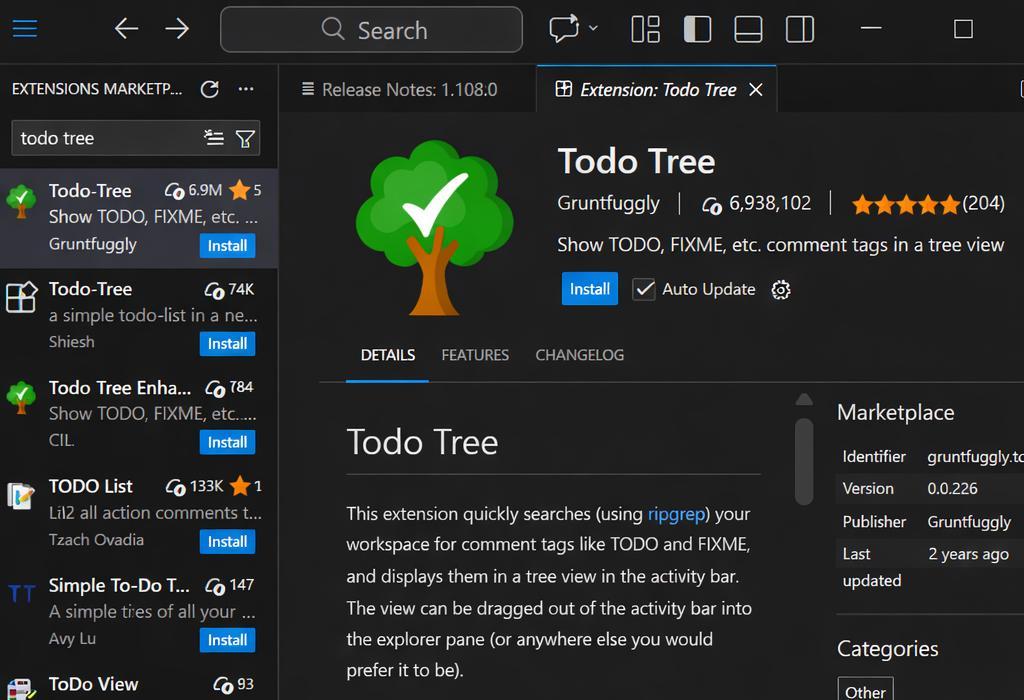 @[extension-search.png]
That’s it for the basics. But the real power lies in customization.
Configuring Your Tags
By default, Todo Tree looks for common tags like TODO, FIXME, BUG, HACK, and XXX. But you can easily tailor it to your own workflow.
- Click the gear icon on the Todo Tree sidebar, or go to Settings > Extensions > Todo Tree.
- Look for the
"Todo-tree: Tags"setting. Here you’ll see the default tag definitions.
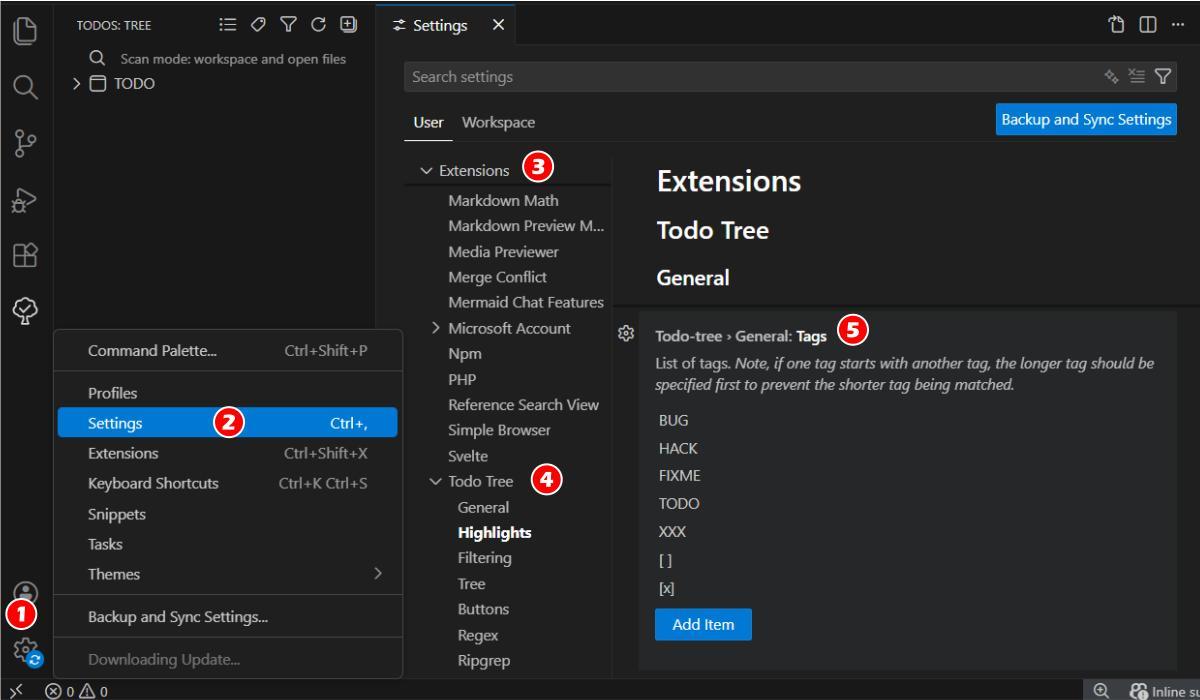 @[tags-settings.png]
The magic is in the brackets. The extension uses a simple syntax to track task status:
[ ](a space between brackets): An open/incomplete task.[x](an ‘x’ between brackets): A completed task.
You can add your own custom tags too! Click “Add Item,” and create a tag unique to you or your team. For example, I added SUNNY: to flag items for my specific attention.
See It in Action: From Chaos to Order
Let’s walk through a practical example. I have a sample project open. I’ll add a few action items across different files:
- In
README.md, I add:<!-- TODO: Update this documentation --> - In a Python script
main.py, I add:# TODO: Add proper error handling here - In a config file, I flag a potential issue:
// BUG: This path might be undefined in production
The moment I save these files, something beautiful happens.
I open the Todo Tree sidebar (click its icon in the activity bar). Instantly, I see a structured tree view of every single tag it found, organized by file.
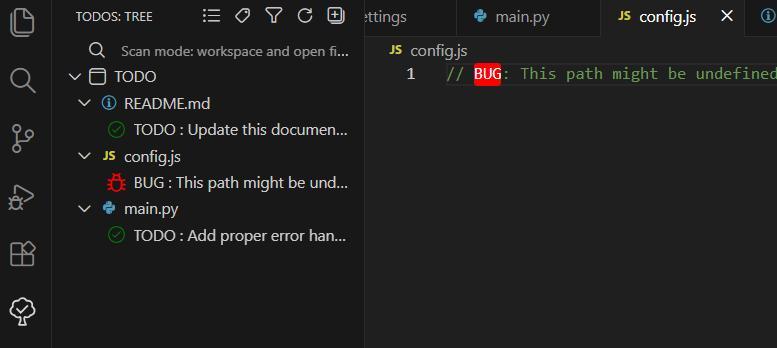 @[sidebar-in-action.png]
Clicking on any item in the list instantly jumps my editor to that exact line of code. It’s not just a list; it’s a direct navigation panel to your technical debt.
Managing Tasks
The workflow becomes seamless:
- Find a task in the sidebar.
- Click it to navigate and fix the code.
- Mark it complete by changing your comment from
// TODO:to// [x]. - Watch the icon in the sidebar turn from an open circle to a checkmark.
- Once the task is fully resolved, you can delete the comment, and it automatically disappears from the Todo Tree.
Scaling to a Real-World Beast
The true test is a massive codebase. Let’s open something huge, like the LangChain repository.
Without writing a single new comment, I open the Todo Tree sidebar. It immediately populates with hundreds of existing TODOs, FIXMEs, and BUGs scattered across thousands of files.
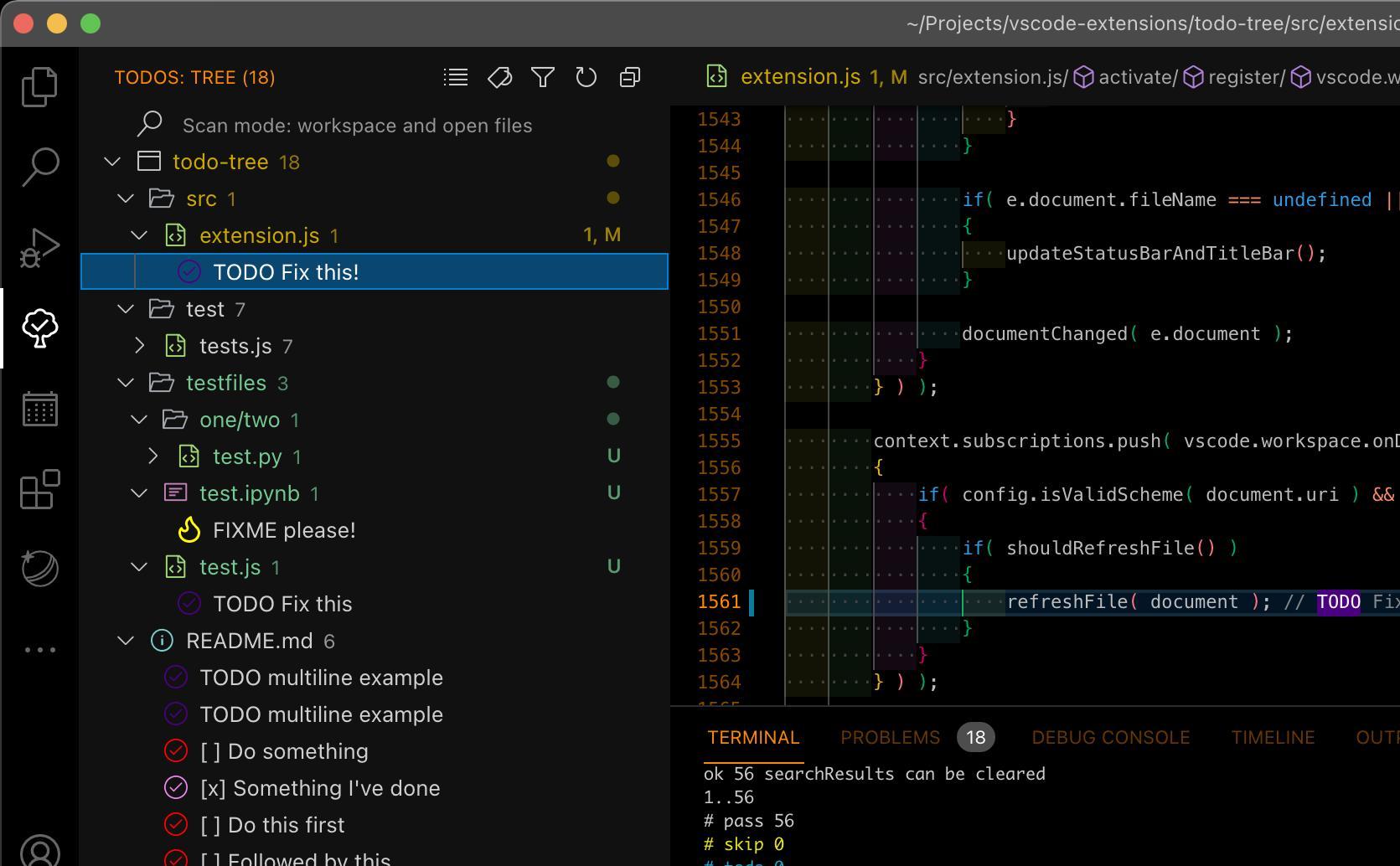 @[langchain-todos.png]
This is incredibly powerful for:
- New contributors: Want to find a good first issue? Scan the
TODOs orFIXMEs. - Code reviewers: Quickly identify temporary hacks (
HACK) that need proper solutions. - Maintainers: Get a high-level dashboard of outstanding code-level tasks across the entire project.
You can also filter the tree. Looking only for BUG reports? Type bug in the filter box at the top of the sidebar. Now you have a focused list of all potentially problematic code sections.
Final Thoughts
Todo Tree transforms a fundamental pain point into a solved problem. It stops your actionable comments from being forgotten and turns them into a living, navigable task list. It’s like having a dedicated project tracker that’s always in sync with your code.
If you value clean, maintainable code and want to stay on top of your improvements, this extension is a must-have.
Give Todo Tree a try. You’ll wonder how you ever managed without it.
What are your indispensable VS Code extensions? I’m always looking for tools that boost productivity. Drop your favorites in the comments below—I might feature them in a future post!
If you found this helpful, feel free to share it with your team. Happy (and organized) coding!